



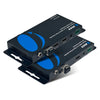


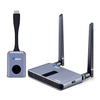




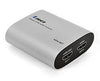




A TV and soundbar can support Dolby Atmos, but that doesn’t guarantee you can use it. And the issue can be hidden somewhere between your input devices, your Atmos soundbar, your cable, or maybe a TV setting.
But you don’t have to replace anything yet, because it might still be workable. Learning how to connect a sound bar to TV setups and picking the right settings can help you fix your home audio experience.
Understanding Dolby Atmos, ARC, and eARC
First, Dolby Atmos adds height and spatial direction to audio, giving listeners a far more immersive experience.
Secondly, HDMI ARC (Audio Return Channel) allows your TV to send audio back to a soundbar or receiver using a single HDMI cable.
And lastly, what is HDMI eARC? It handles the same job with significantly higher bandwidth, passing uncompressed premium formats like Dolby Atmos, Dolby TrueHD, Dolby Digital Plus, and multichannel audio.
The Simplest Setup: TV eARC → Soundbar
HDMI source → TV → eARC → Soundbar
Connect source to TV, then HDMI to soundbar. Be sure to use the right port.
Once you set up your devices, check the TV settings. Set digital audio output to Bitstream, Pass-Through, Auto, or the appropriate manufacturer setting.
If you're still wondering how to enable Dolby Atmos, you may also want to check the audio settings on your streaming device or game console.
Why You May Be Losing Dolby Atmos

For setups that look like this:
Streaming Device / Game Console → TV → Soundbar
Several things can interrupt Atmos along the way:
-
The soundbar is connected to the wrong port.
-
The TV uses ARC when eARC is needed.
-
The TV audio output is set to PCM or stereo.
-
The source device isn't configured for Atmos.
-
The TV can't pass through the required audio format.
-
An older TV is paired with a newer Atmos soundbar.
-
A compatibility issue prevents the devices from working.
-
An extractor or splitter doesn't support the required format.
-
The HDMI cable isn’t working.
When Your TV Becomes the Limitation
An older TV can be the weak link even when the rest of the equipment is current.
For instance, if everything supports Dolby Atmos, but the TV doesn’t, it will not pass it. In this case, changing the soundbar won't solve the problem.
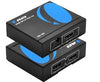
However, specialized HDMI and eARC equipment, such an eARC audio extractor, can provide another way to route the audio when the TV's built-in connections aren't enough.
Using an OREI BK-931 in More Complex Audio Setups

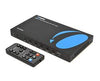
The OREI BK-931 is intended for setups that need more routing flexibility.
It integrates HDMI source devices, TVs and displays, eARC/ARC audio systems, soundbars, and AV receivers. This can be useful when you need audio extraction alongside the main connection or if your older TV creates compatibility limitations.
But the BK-931 isn't necessary for every Dolby Atmos installation. A direct eARC connection remains the simplest option when the TV and soundbar already support the required formats.
Common Dolby Atmos Soundbar Setups
Setup 1: Modern eARC TV + eARC Soundbar
Source → TV → eARC → Soundbar
Best for straightforward home theater Dolby Atmos setup installations.
Setup 2: Gaming Console/Streaming Device + TV + Soundbar
PS5 / Xbox / Apple TV / Streaming Device → TV → eARC → Soundbar
This works well when the TV supports the required video and audio formats.
Setup 3: More Complex Audio Routing
HDMI Source → OREI BK-931 → TV / Audio System
Useful when additional audio extraction is needed or several HDMI and audio connections have to work together.
Troubleshooting: Dolby Atmos Still Not Working?
-
Confirm the content includes Dolby Atmos.
-
Check the TV's HDMI eARC port.
-
Check the soundbar's eARC/ARC input.
-
Enable eARC in the TV settings.
-
Check digital audio output settings. .
-
Check Atmos settings on the source device.
-
Verify the HDMI cable supports the required features.
-
Restart the TV, source, and soundbar to reset the HDMI handshake.
-
Test the source directly with the soundbar when possible.
Standard ARC vs. eARC
| Feature | HDMI ARC | HDMI eARC |
|---|---|---|
| Primary Use | TV audio return | Advanced TV audio return |
| Audio Bandwidth | Lower | Higher |
| Dolby Digital Plus | Supported | Supported |
| Dolby TrueHD | Generally Not Supported | Supported |
| Lossless Dolby Atmos | Limited/Not Typical | Supported with Compatible Devices |
| Best For | Basic soundbar setups | Modern premium soundbar/home theater setups |
| Setup Complexity | Simple | Simple with compatible equipment |
NOTE: Actual audio format support depends on the TV, soundbar, source device, content, and configuration.
Who Should Consider an HDMI/eARC Audio Solution?
Additional HDMI/eARC equipment makes sense when the TV has limited audio capabilities, several HDMI components need to share one system, or audio extraction is required alongside the main soundbar connection. It's also useful for gaming setups that need modern video features while maintaining advanced audio.
Keep Dolby Atmos Throughout the Right Audio Path
A Dolby Atmos soundbar alone doesn't guarantee Atmos playback. The source, content, TV, HDMI connection, and audio settings all affect what reaches the soundbar.
Use a direct eARC connection when the TV and soundbar support the required formats. For more complicated setups, OREI HDMI/eARC solutions such as the BK-931 can provide additional routing flexibility.


