












Gameplay recording has changed a lot. What used to be casual clips and quick uploads has turned into full streaming and content setups for a lot of creators.
That’s usually where software capture starts struggling. Frame drops, lag, and inconsistent recordings become pretty common once games and streaming software are running together.
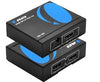
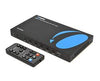
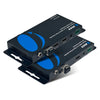
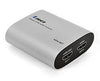
A dedicated HDMI video capture card helps take some of that load off your system. OREI’s VC-1080 is built for stable everyday capture, while the VC-8KTUSB3 is designed more for higher-end production workflows.
What You Need Before You Start
Before learning how to set up a capture card, here are the basics.
You’ll need an HDMI source first, like a Nintendo Switch. Similarly, a lot of users start with a capture card for Nintendo Switch setup since it’s easy to configure.
You’ll also need:
-
OREI VC-1080/VC-8KTUSB3
-
HDMI cables
-
USB cable
-
PC or laptop with USB 3.0 or 3.2
-
Optional: mic/headphones
Understanding How an OREI Capture Card Works
The setup is simpler than you’d expect. Your console or PC sends video into the capture card through HDMI, then the card passes everything to your PC through USB.
The VC-1080 is a USB 3.0 capture card built mainly for stable 1080p recording and streaming. The VC-8KTUSB3 supports up to 8K input and captures up to 4K at 60FPS, including higher refresh rate workflows like 1440p at 144Hz.
Both are designed for low-latency capture, so gameplay still feels responsive while recording.
Step-by-Step Setup Guide

If you’re figuring out how to connect capture cards to PCs, the process is usually quick:
-
Connect your source to your capture
-
Connect the HDMI loop-out to your display for zero-lag
-
Plug the card into a USB 3.0/3.2 port on your
-
Connect your mic or
-
Power on and verify signal
Most OREI devices are plug-and-play, so drivers aren’t necessary. Audio handling and format detection are also automatic in most setups.
Recording Your Content Using OBS or Similar Software
Recording might feel complicated, but it’s generally intuitive:
-
Open OBS or your preferred software once the hardware is connected.
-
Add the OREI device as your video input source. If you’re using a capture card for OBS, detection is usually automatic after connection.
-
Adjust your resolution and frame rate settings.
-
Check audio settings, especially if both HDMI audio and a microphone are active.
OREI devices also work with softwares like vMix, Zoom, Teams, and Streamlabs.
Key Features That Improve Your Recording Experience
A few features become important once you regularly record. HDMI loop-out is one of them. Watching gameplay through OBS with delay gets annoying fast, so a direct feed to your monitor makes a huge difference.
Plug-and-play features are also great, which is why OREI uses standard UVC/UAC support. Meaning, most PCs recognize them without extra drivers.
Connection stability matters too. A USB 3.0 capture card setup handles longer recording sessions better, especially with higher resolutions and frame rates.
VC-1080 vs VC-8KTUSB3: Which One Should You Choose?

Most people will probably be fine with the VC-1080. It handles 1080p capture well, accepts 4K input, and works nicely as a simple capture card for streaming.
The VC-8KTUSB3 is built for heavier workflows. It features 8K input, 4K@60Hz capture, HDR, formats like YUY2 and MJPEG, plus separate HDMI, mic, and line-in audio control. And although you don’t need these immediately, you’ll want them once production gets heavier.
If you’re still learning how to record gameplay on PC, the VC-1080 makes sense. The VC-8KTUSB3 is better once content creation starts becoming more serious.
Common Mistakes to Avoid
A lot of setup problems come from really small mistakes.
Using a USB 2.0 instead of USB 3.0/3.2 is very common. With it, recording quality falls apart once gameplay starts moving quickly.
People also mix up HDMI input and output ports constantly. And another common issue is forgetting to actually select the capture device inside OBS or Streamlabs.
Audio gets messy too. Especially when HDMI audio and microphone inputs are both enabled.
Sometimes, the problem isn’t the card. Cheap cables also cause random issues more often than they should.
Troubleshooting Quick Tips
If your capture card’s not working, or showing no signal, check the HDMI source, cable direction, and monitor input. That fixes the problem surprisingly often.
No power usually points back to USB. Switching ports is worth trying before assuming the hardware failed.
If the recording suddenly looks blurry or unstable, there’s a chance the connection is running through a slower USB port or unsupported hub.
No audio is usually software-related. OBS input settings are normally the first place worth checking.
Build a Reliable Recording Setup
Recording setups don’t need to become overly complicated just to work properly. Once everything is connected correctly, dedicated capture hardware makes recording and streaming far more stable than relying only on software capture.
The VC-1080 works well for everyday creators and straightforward streaming setups. The VC-8KTUSB3 gives more flexibility for larger production workflows and higher-end recording needs. Either way, OREI capture cards are built to scale with your setup instead of limiting it later on.


