












Your TV Supports HDR. So Why Doesn't It Look Like HDR?
An HDR-compatible TV doesn't guarantee an HDR picture.
One missing setting or one incompatible device is enough for the entire setup to fall back to standard dynamic range (SDR). The result is familiar: the HDR logo never appears, or the picture looks no different from regular video. That's usually when people start asking, "Why does HDR look washed out?"
But the TV is only one part of the system. The source device, the HDMI cable for HDR, and any AV equipment connected all affect whether HDMI HDR reaches the screen.
What Does Your TV Actually Need to Display HDR?
Finding the problem is easier once you look at the whole setup.
(insert image described in outline)
Every device in that path has to support HDR. That includes the source, the cable, any AV hardware in between, and HDR in a TV itself. Missing support at any point in the chain is enough to stop HDR from reaching the screen.

Many TVs leave enhanced HDMI features turned off. Depending on the manufacturer, the setting may appear as HDMI Enhanced, Deep Color, UHD Color, or Input Signal Plus.
Before replacing cables or hardware, check the HDMI input connected to your source device. A disabled HDR setting can leave the picture looking HDR washed out even when the TV supports HDR.
Problem #2: Your HDMI Cable May Not Support HDR Bandwidth Older cables can still carry a picture, which makes them seem perfectly fine. HDR is usually the first thing to disappear when the cable can't keep up with the extra data.
If the cable has been part of the setup for several years, it's worth checking its specifications before replacing anything else. An older cable that worked perfectly well before may not be the best HDMI cable for HDR today.
Problem #3: Your HDMI Splitter, Switch, or Matrix Doesn't Support HDR

Adding another display often changes more than expected. Any AV equipment becomes part of the HDMI path the moment it's connected.
Outdated HDMI hardware may not support HDR, HDCP, or EDID. If HDR is not working after expanding the system, the distribution hardware is one of the first places worth checking.
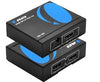
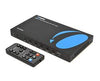
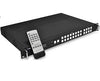
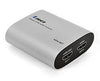
OREI UHD splitters, switches, and matrix systems are designed to carry HDR across the entire signal path.
Problem #4: Long HDMI Cable Runs Can Affect Signal Quality
The setup worked for years. Then the TV moved to the other side of the room. Long HDMI cables don't always cause problems, but they can make HDR less reliable, especially with 4K content. The picture may still appear, but HDR drops out or never switches on.
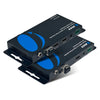
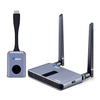
Instead of stretching the HDMI cable farther, use HDMI extenders for longer runs. It carries the signal over greater distances without asking a single cable to do all the work.
Problem #5: Your Streaming Device or Game Console Isn't Outputting HDR
One question can save a lot of time: Is the source actually sending HDMI HDR? Streaming devices, game consoles, and media players don't always output HDR by default. A recent software update, a factory reset, or even switching resolutions can change those settings.
The content matters too. An SDR movie will stay SDR, regardless of what the TV supports.
Problem #6: EDID Communication Can Prevent HDR from Activating
This problem is harder to spot because everything looks compatible on paper. The TV supports HDR. The player and splitter may support HDR, but they still have to agree on what signal to use.
That's where EDID comes in. Before anything appears on screen, HDMI devices exchange information about the formats they support. If that exchange doesn't happen properly, the source may fall back to SDR.
This is why good EDID management becomes more important as systems grow. OREI HDMI splitters and matrix switchers are designed to keep that information flowing correctly across the entire setup.
HDR Troubleshooting Checklist
✓ HDR enabled on TV
✓ HDMI Enhanced/UHD mode enabled
✓ HDMI 2.0 or HDMI 2.1 cable
✓ HDR-capable streaming device or console
✓ HDR-compatible HDMI splitter, switch, or matrix
✓ Proper EDID configuration
✓ HDR-supported content
Missing one of these can stop HDR from working, even if everything else is set up correctly.
Recommended OREI Solutions for Common HDR Problems
| Problem | Recommended OREI Solution |
|---|---|
| HDR fails through HDMI splitter | HDR-compatible HDMI Splitter |
| HDR stops working after adding multiple displays | HDMI Matrix with HDR passthrough |
| HDR fails over long cable runs | HDMI Extender |
| Multiple HDR TVs in one setup | HDMI Matrix or Splitter with EDID management |
HDR Is Only as Strong as Your Entire AV Setup
HDR not working rarely comes down to one device. More often, it's one small part of the HDMI chain that's holding everything else back.
Checking the TV, cable, source device, and any HDMI hardware in between usually points you to the cause much faster than replacing equipment one piece at a time. If your setup includes splitters, matrix switchers, or extenders, choosing hardware built for HDR helps keep the signal intact from source to screen.


